Budget Monitoring
Budget tracking is when you check whether your actual spending matches what you had budgeted to spend. It helps you keep track of your finances and ensures that you adjust your budget based on your actual spending.

Why Conduct a Budget Review?
It may be a good idea to monitor your budget to ensure that you’re not budgeting too little or too much. By reconciling your budget, you review and adjust it annually so that you neither run a deficit nor end up with a large surplus.
Some expenses do not vary, and for those, you always know what the future cost will be. These might include expenses such as a mortgage, rent, insurance, or certain subscriptions. Other expenses, on the other hand, can vary greatly, depending on factors such as your consumption, the economy, or global supply. These might include expenses like electricity, home or car maintenance, or other subscriptions.
How to Track Your Budget
If you have a budget in Personal Finance, it’s super easy to keep track of it. We’ve designed a feature specifically for that purpose.
Step 1: Select the year you want to follow up on
Go to your Budget and select the year you want to track under the “Budget Tracking” tabs.
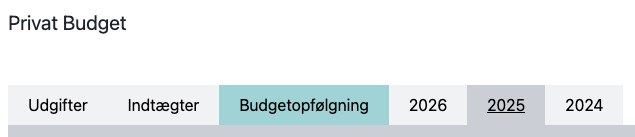
Here you’ll find all the expenses you budgeted for that year, as well as the annual budgeted amount.
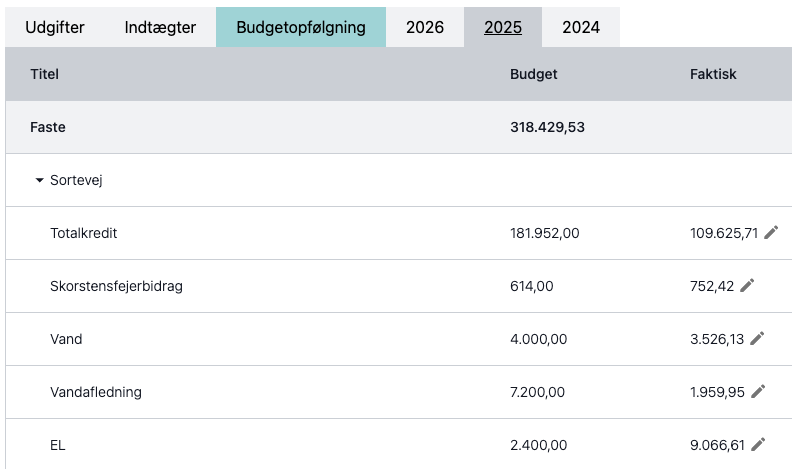
You can now compare your actual spending with your Budget for that year. We recommend that you review your budget every month or every quarter, depending on how many recurring expenses you have in your budget. It’s easy and takes only a few minutes, even if you only do it every quarter.
Step 2: Add expenses to the follow-up
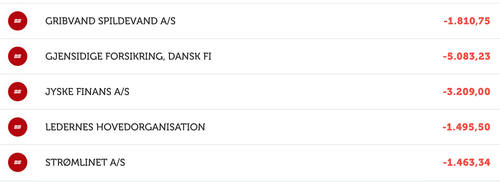
When you reconcile your budget account, all you have to do is open your account in your online banking service and add the amount for each payment to the corresponding expense in the Budget Tracking tab on Personal Finance.
There are two ways to add payments.
Step 2.1: Edit Actual Amounts
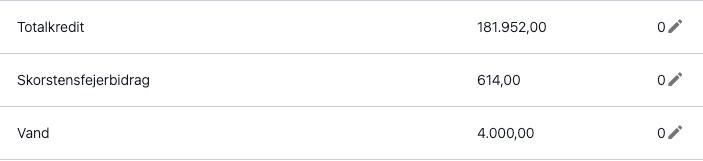
Find the expense in the list of expenses, and tap the edit icon next to the actual expense to edit the amount (which starts at 0).
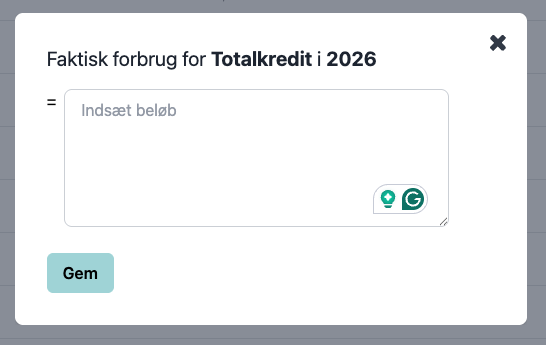
In the window that opens, you can enter an amount or a simple formula. Most expenses are paid multiple times throughout the year, so you can add them one after another as a simple calculation (e.g., 347+347).
Once you have edited the actual usage, tap Save.
Step 2.2: Add payment
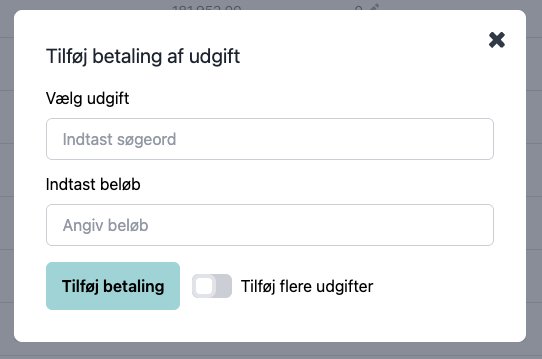
You can also add payments for an expense by tapping the Add Payment button in the upper-right corner.

Now you can search for the expense you want to record a payment for in the Select Expense field and enter the amount below.
If you check the Add More Expenses checkbox, the window will remain open after you save your payment—so you can quickly enter additional payments.
Step 3: Reconcile the budget account
At the end of the year, you’ll be ready to reconcile your budget. You’ve now added all payments to your budget tracking for that year, so you can easily see whether you’ve budgeted too little or too much.
Under the Actual column in the budget tracking report, you can see the total spending for the year for each expense.
You can compare these figures with the budgeted expenses in your Budget.
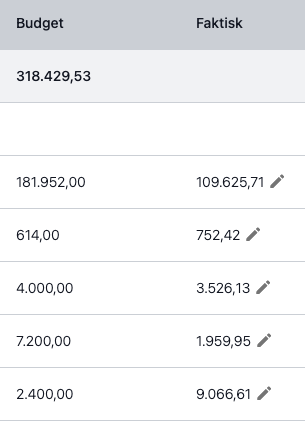
In this example, you can see that the budget for water was 4,000 DKK, but the actual expense for the year was only 3,526 DKK. Your water bill often depends on your estimated usage, and by keeping track of your Budget, you’ll find that the cost this year was lower than expected.
You might want to consider whether you should reduce your water budget—or whether there was a specific reason for the lower usage.