Spreadsheet
Here you can learn about what a Spreadsheet on Personal Finance is, what features you can use in a Spreadsheet, and how to get started with a Spreadsheet.
What Is a Spreadsheet on Personal Finance
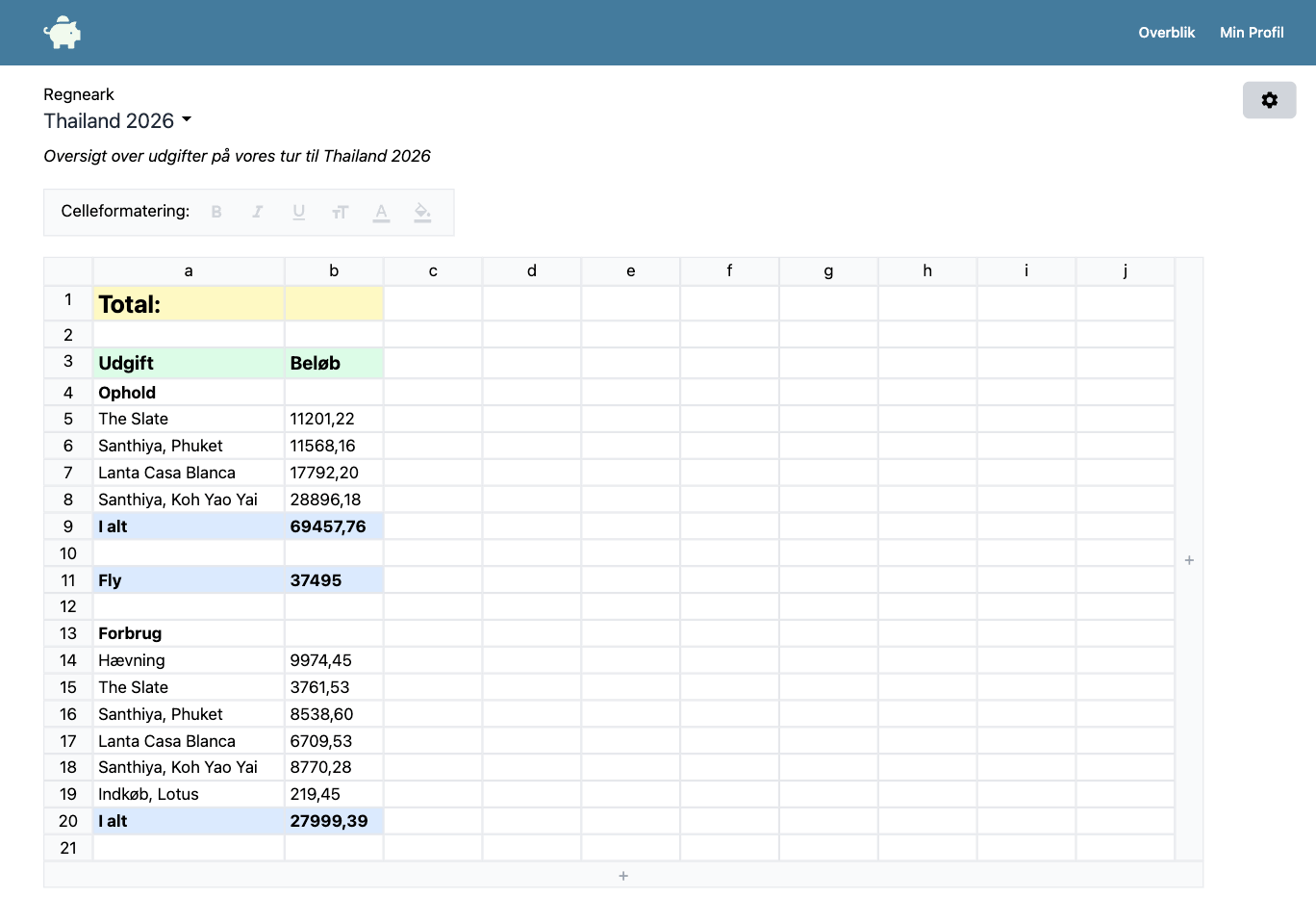
There are many tools—both free and paid—that you can use to create a Spreadsheet. Everyone is familiar with Microsoft Excel, and many people are familiar with Google Sheets. Both tools are complex systems with many useful features. They are used by both individuals and professionals in the vast majority of companies. Companies have more specific requirements for functionality, which can make these tools seem cumbersome and very complex.
A Spreadsheet on Personal Finance is not a substitute for Microsoft Excel or Google Sheets. A Spreadsheet here is a highly simplified version of those major systems, but it still includes the functionality you need most often. So we’re not competing with Excel or Google Sheets, but rather offering a simplified version that’s often sufficient for personal use.
Why Create a Spreadsheet on Personal Finance
There are several reasons to use a Spreadsheet on Personal Finance rather than, for example, Excel or Spreadsheet:
- You already use Personal Finance to manage your budget
- You want to quickly get an overview of a simple calculation, such as the difference between buying and leasing a car
- You keep all your financial documents in one place (instead of an Excel file on your computer, an online spreadsheet on Google, and other platforms)

How to Get Started with a Spreadsheet
It’s really easy to create a new Spreadsheet, and if you’re familiar with other Spreadsheet programs (such as Excel), you’ll quickly feel right at home.
When you’re on “My Overview,” simply click the “Create Spreadsheet” button in the upper-right corner.

You will then be taken to your new Spreadsheet and be ready to perform your calculation.

What functions can you use in a Spreadsheet?
Here you’ll find a description of all the features you can use in a Spreadsheet. The Spreadsheet is constantly evolving, and we’re continuing to work on adding more features. You can therefore always return to this article to see if the features you need have been added.
Cell Formatting
There are a few simple ways to make your Spreadsheet easier to navigate.
For text in cells, you can:
- Make it bold
- Make it italic
- Underline it
- Change the font size
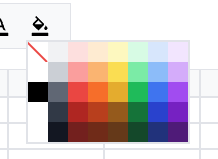
- Change the text color

You can also change the background color of the entire cell.
Formulas
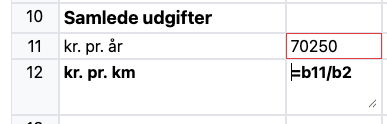
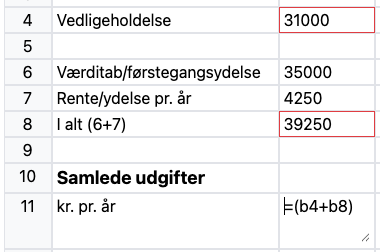
A cell becomes a formula when you start its contents with an equals sign =. You can then perform calculations using numbers and the contents of other cells.
You refer to another cell by entering its letter and number, such as a1 or b12. For example, if you type =a1+a2 in a cell, it will display the sum of the contents of cells a1 and a2. If one of the cells you’re referencing is updated, your formula will be automatically recalculated.
SUM()
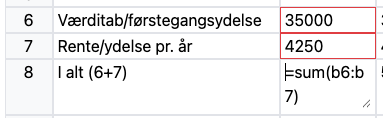
If you need to add up a large number of cells, it can become overwhelming to enter them one by one. In this case, you can use the SUM() function to sum an entire range of cells at once.
For example, type =SUM(a1:a10) to add the contents of cells a1 through a10. You can also sum an entire range of cells, such as =SUM(a1:c5), which adds up all the cells from a1 to c5.
Calculations
In addition to SUM(), you can also use standard arithmetic operators directly in a formula: +, -, *, and /. You can combine them with both numbers and cell references, and use parentheses to control the order of operations, e.g., =(a1+a2)*2.
Remember to use a comma as the decimal separator, e.g., 12,5, just as you’re used to doing elsewhere in Denmark.